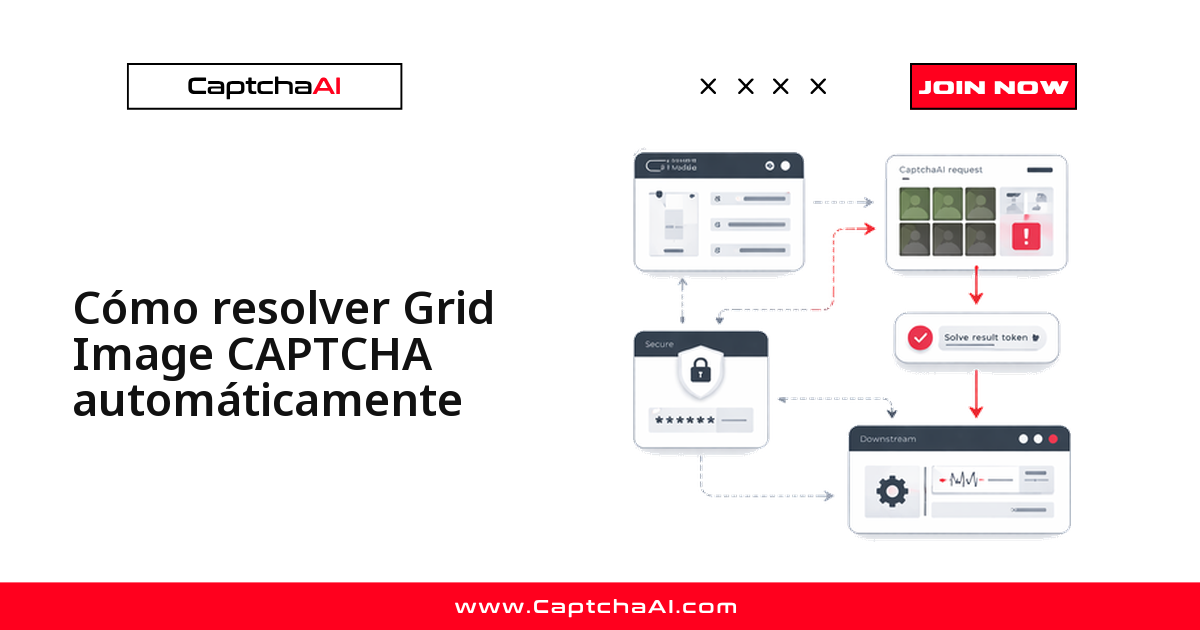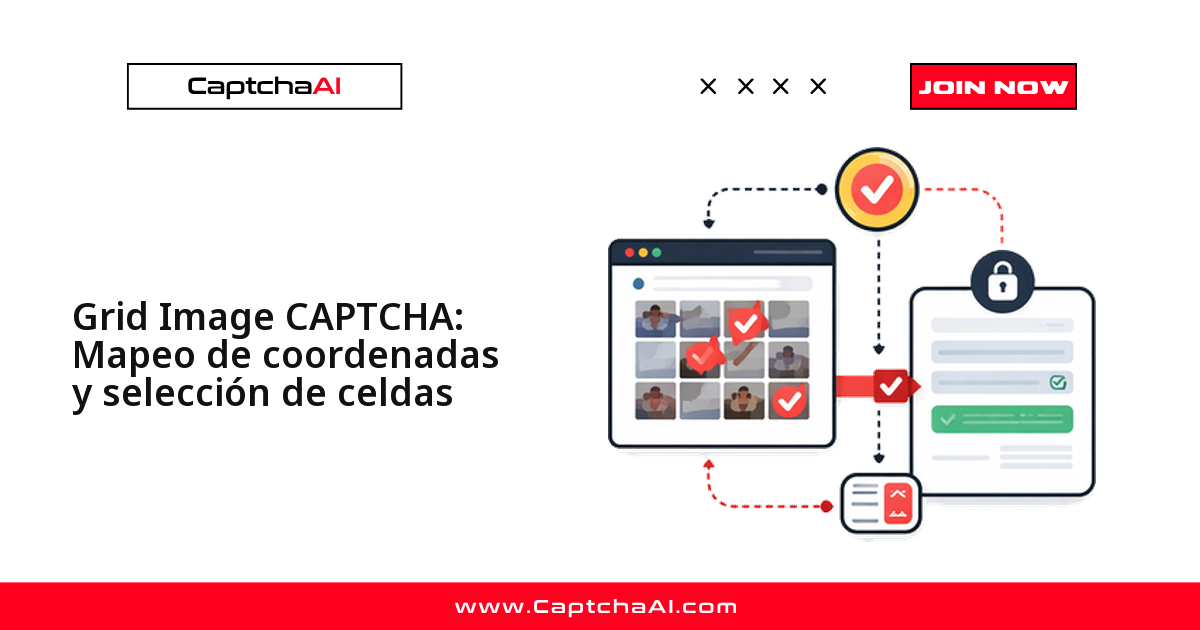
Cuando resuelves un CAPTCHA de imagen de cuadrícula, el servicio no hace clic por ti: te devuelve una lista de índices como [1, 3, 6, 9]. Tu trabajo es traducir esos números a coordenadas de píxel y pulsar los mosaicos correctos. El caso típico son los desafíos de reCAPTCHA v2: una cuadrícula de 3×3 o 4×4 con una instrucción como "Selecciona todos los cuadros con semáforos". Esta guía recorre las cuatro etapas, de capturar la cuadrícula a pulsar la celda correcta.
Tamaños de cuadrícula y numeración de celdas
Casi todas las cuadrículas usan uno de dos tamaños. Las celdas se numeran en orden de lectura: de izquierda a derecha y de arriba abajo, empezando por el 1.
3×3 Grid:          4×4 Grid:
1  2  3            1   2   3   4
4  5  6            5   6   7   8
7  8  9            9  10  11  12
                   13  14  15  16
Ese es el orden que usa CaptchaAI en su respuesta: el índice 1 es siempre la esquina superior izquierda y no hay índice 0. Detectar bien el tamaño es clave, porque un índice 12 solo existe en una cuadrícula de 4×4.
Paso 1: captura la imagen y detecta el tamaño de la cuadrícula
El desafío vive dentro de un iframe de reCAPTCHA. Cambia el contexto a ese iframe, captura la imagen en base64 y lee la clase del elemento (rc-image-tile-33 o rc-image-tile-44) para saber si es de 3×3 o de 4×4.
Python (Selenium)
import base64
from selenium import webdriver
from selenium.webdriver.common.by import By
from selenium.webdriver.support.ui import WebDriverWait
from selenium.webdriver.support import expected_conditions as EC

driver = webdriver.Chrome()
driver.get("https://example.com/form")

# Wait for reCAPTCHA iframe
WebDriverWait(driver, 10).until(
    EC.presence_of_element_located((By.CSS_SELECTOR, "iframe[src*='recaptcha']"))
)

# Switch to challenge iframe
iframes = driver.find_elements(By.CSS_SELECTOR, "iframe[src*='recaptcha']")
challenge_iframe = iframes[-1]  # Challenge iframe is typically the last one
driver.switch_to.frame(challenge_iframe)

# Get the grid image
grid_img = driver.find_element(By.CSS_SELECTOR, "img.rc-image-tile-33, img.rc-image-tile-44")
img_src = grid_img.get_attribute("src")

# Get instruction text
instruction = driver.find_element(
    By.CSS_SELECTOR, ".rc-imageselect-desc-wrapper"
).text
print(f"Instruction: {instruction}")

# Screenshot the grid as base64
img_b64 = grid_img.screenshot_as_base64

# Determine grid size
classes = grid_img.get_attribute("class")
grid_size = "4x4" if "44" in classes else "3x3"
print(f"Grid size: {grid_size}")

driver.switch_to.default_content()
JavaScript (Puppeteer)
const puppeteer = require('puppeteer');
const fs = require('fs');

const browser = await puppeteer.launch({ headless: false });
const page = await browser.newPage();
await page.goto('https://example.com/form');

// Find the challenge iframe
const frames = page.frames();
const challengeFrame = frames.find(f => f.url().includes('recaptcha'));

// Get instruction
const instruction = await challengeFrame.$eval(
  '.rc-imageselect-desc-wrapper',
  el => el.textContent.trim()
);

// Screenshot the grid image
const gridImg = await challengeFrame.$('img.rc-image-tile-33, img.rc-image-tile-44');
const imgBuffer = await gridImg.screenshot();
const imgBase64 = imgBuffer.toString('base64');

// Determine grid size
const className = await challengeFrame.$eval(
  'img.rc-image-tile-33, img.rc-image-tile-44',
  el => el.className
);
const gridSize = className.includes('44') ? '4x4' : '3x3';
console.log(`Grid: ${gridSize}, Instruction: ${instruction}`);
Paso 2: envía la cuadrícula a CaptchaAI
Extrae la palabra clave de la instrucción (por ejemplo, traffic lights), envía la imagen al endpoint in.php y consulta res.php cada pocos segundos hasta que deje de responder CAPCHA_NOT_READY. La respuesta es la lista de índices que hay que pulsar.
import requests
import time
import json

API_KEY = "YOUR_API_KEY"

# Parse the instruction to a simple keyword
# "Select all images with traffic lights" → "traffic lights"
import re
keyword_match = re.search(r'(?:with|of|containing)\s+(.+?)\.?$', instruction, re.I)
keyword = keyword_match.group(1) if keyword_match else instruction

# Submit
with open("/tmp/grid.png", "wb") as f:
    f.write(base64.b64decode(img_b64))

with open("/tmp/grid.png", "rb") as f:
    resp = requests.post("https://ocr.captchaai.com/in.php",
        files={"file": f},
        data={
            "key": API_KEY,
            "method": "post",
            "grid_size": grid_size,
            "img_type": "recaptcha",
            "instructions": keyword,
            "json": "1",
        }
    ).json()

if resp["status"] != 1:
    raise Exception(f"Submit error: {resp['request']}")

task_id = resp["request"]

# Poll
for _ in range(20):
    time.sleep(5)
    result = requests.get("https://ocr.captchaai.com/res.php", params={
        "key": API_KEY, "action": "get", "id": task_id, "json": "1"
    }).json()

    if result["status"] == 1:
        cells = json.loads(result["request"])
        print(f"Cells to click: {cells}")  # e.g., [1, 3, 6, 9]
        break
    if result["request"] != "CAPCHA_NOT_READY":
        raise Exception(f"Error: {result['request']}")
Paso 3: convierte los índices de celda en coordenadas de píxel
Con el tamaño de la cuadrícula y sus dimensiones en píxeles, cada índice se traduce al centro de su celda: divide el ancho entre el número de columnas, deriva fila y columna del índice (que empieza en 1, no en 0) y toma el punto medio.
def cell_to_coordinates(cell_index, grid_size, grid_width, grid_height):
    """Convert a 1-based cell index to (x, y) center coordinates."""
    if grid_size == "3x3":
        cols, rows = 3, 3
    else:
        cols, rows = 4, 4

    cell_w = grid_width / cols
    cell_h = grid_height / rows

    # Convert 1-based index to 0-based row/col
    idx = cell_index - 1
    col = idx % cols
    row = idx // cols

    # Center of the cell
    x = col * cell_w + cell_w / 2
    y = row * cell_h + cell_h / 2

    return int(x), int(y)

# Example: grid is 300×300
for cell in cells:
    x, y = cell_to_coordinates(cell, grid_size, 300, 300)
    print(f"Cell {cell} → ({x}, {y})")
Salida para una cuadrícula de 3×3 (300×300):
Cell 1 → (50, 50)
Cell 3 → (250, 50)
Cell 6 → (250, 150)
Cell 9 → (250, 250)
Apuntar al centro de la celda, y no a su borde, evita que un clic caiga en el mosaico contiguo.
Paso 4: haz clic en las celdas y verifica
Vuelve al iframe del desafío, calcula el desplazamiento de cada clic respecto al centro del elemento de la cuadrícula y pulsa cada celda. Al terminar, haz clic en el botón de verificación.
Selenium
from selenium.webdriver.common.action_chains import ActionChains

driver.switch_to.frame(challenge_iframe)

# Get grid element position and size
grid_el = driver.find_element(By.CSS_SELECTOR, ".rc-imageselect-target")
grid_rect = grid_el.rect
grid_w = grid_rect["width"]
grid_h = grid_rect["height"]

actions = ActionChains(driver)

for cell in cells:
    x, y = cell_to_coordinates(cell, grid_size, grid_w, grid_h)
    # Click relative to grid element's top-left corner
    actions.move_to_element_with_offset(
        grid_el,
        x - grid_w / 2,  # offset from center
        y - grid_h / 2
    ).click()

actions.perform()

# Click verify
verify_btn = driver.find_element(By.ID, "recaptcha-verify-button")
verify_btn.click()

driver.switch_to.default_content()
Puppeteer
// Click each cell by index
const tableRows = await challengeFrame.$$('table.rc-imageselect-table tr');
for (const cellIdx of cells) {
  const row = Math.floor((cellIdx - 1) / (gridSize === '4x4' ? 4 : 3));
  const col = (cellIdx - 1) % (gridSize === '4x4' ? 4 : 3);
  const cell = (await tableRows[row].$$('td'))[col];
  await cell.click();
  await new Promise(r => setTimeout(r, 200));
}

await challengeFrame.click('#recaptcha-verify-button');
Con Selenium trabajas por coordenadas dentro de la cuadrícula; con Puppeteer resulta más cómodo pulsar directamente la celda <td> de la tabla.
Cuadrículas que cambian: mosaicos dinámicos
Algunas cuadrículas de reCAPTCHA v2 sustituyen cada mosaico que pulsas por una imagen nueva, así que una sola pasada no basta. La solución es un bucle: vuelve a capturar, resolver y pulsar en cada ronda hasta que el desafío desaparezca o agotes los reintentos.
def solve_with_dynamic_tiles(driver, api_key, max_rounds=3):
    for round_num in range(max_rounds):
        driver.switch_to.frame(challenge_iframe)

        # Re-capture grid and instruction
        img_b64 = driver.find_element(
            By.CSS_SELECTOR, "img.rc-image-tile-33"
        ).screenshot_as_base64

        # Submit and get cells (same as above)
        cells = submit_and_poll(api_key, img_b64, "3x3", keyword)

        if not cells:
            break

        # Click cells
        click_cells(driver, cells, "3x3")

        # Click verify
        driver.find_element(By.ID, "recaptcha-verify-button").click()

        driver.switch_to.default_content()
        time.sleep(2)

        # Check if solved (no more challenge iframe)
        try:
            driver.switch_to.frame(challenge_iframe)
            driver.switch_to.default_content()
        except Exception:
            return True  # Solved

    return False
Dónde aparece este flujo
Las cuadrículas de reCAPTCHA v2 protegen muchos formularios públicos de la región: portales de cita previa, trámites del SAT en México o de AFIP en Argentina, y monitoreo de precios en marketplaces tipo MercadoLibre. Si automatizas las pruebas de un flujo propio o autorizado, el patrón capturar → resolver → mapear → clic no cambia; solo varían el selector del iframe y el tamaño de la cuadrícula. Respeta siempre los términos de servicio y la normativa de protección de datos aplicable (RGPD y LOPDGDD en España, LFPDPPP en México).
Errores frecuentes y cómo resolverlos
| Problema | Causa | Solución |
|---|---|---|
| Celdas incorrectas en la respuesta | grid_size mal detectado |
Confirma si la cuadrícula es de 3×3 o de 4×4 |
| Los clics no aciertan las celdas | Desplazamiento de coordenadas mal calculado | Revisa las dimensiones reales del elemento de la cuadrícula |
ERROR_WRONG_FILE_EXTENSION |
Formato de imagen no válido | Usa PNG o JPEG |
| Aparecen mosaicos nuevos tras el clic | Cuadrícula dinámica | Vuelve a resolver después de cada ronda |
Preguntas frecuentes
¿Por qué mis clics caen en la celda equivocada?
Casi siempre es el desplazamiento: move_to_element_with_offset parte del centro del elemento, así que hay que restar la mitad del ancho y del alto. Comprueba también que el grid_size detectado sea correcto; mapear una cuadrícula de 4×4 como si fuera de 3×3 desvía todos los clics.
¿Puedo resolver la cuadrícula sin abrir un navegador?
En parte. La resolución solo necesita la imagen: la capturas, la envías a la API y recibes los índices sin navegador visible. Pero para pulsar las celdas y enviar la verificación de reCAPTCHA v2 necesitas un contexto de navegador, headless o no.
¿Cómo manejo instrucciones en varios idiomas?
La instrucción llega como texto en .rc-imageselect-desc-wrapper. La expresión regular del ejemplo asume inglés; si el portal la muestra en español, ajusta el patrón para capturar la palabra tras "con" o "de", o envía la frase completa en instructions.
¿Qué plan de CaptchaAI conviene para muchas cuadrículas por hora?
CaptchaAI cobra por thread concurrente, no por resolución, y cada plan incluye resoluciones ilimitadas por thread. BASIC ($15/mes, 5 threads) cubre un volumen moderado; ADVANCE ($90/mes, 50 threads) sube el techo si necesitas más paralelismo. El límite lo marca cuántas cuadrículas resuelves en paralelo, no un tope de solicitudes.
Empieza a resolver cuadrículas con CaptchaAI
Obtén tu clave API en captchaai.com y conecta el flujo de captura, resolución y clic a tu propio proyecto en minutos.